SharePoint is a core product for companies using Microsoft 365. Sitting at the heart of collaboration, it acts as a centralized information repository that connects Teams, Outlook, Viva Engage and the rest of the Microsoft 365 tools.
Broadly, there are two types of SharePoint sites: communication sites and team sites. A communication site, often referred to as an intranet, is designed for publishing information like news or reports from a centralized source to a large audience. A team site, on the other hand, is a collaboration space where employees work together, share files and exchange information.
Because of this central role, a SharePoint intranet is the foundation of a secure Microsoft 365 environment. Before getting it deployed, the first crucial step is proper governance. Without proper controls, a well-designed intranet quickly becomes exposed, overshared, and difficult to manage.
This blog is a practical guide to building a SharePoint intranet and applying best practices to keep it secure and scalable as your business grows.
How to Build an Intranet in SharePoint Online
We have created a dedicated post that walks through the process of building a SharePoint site, covering both team sites and communication sites.
This part covers how to create a SharePoint intranet. Its primary purpose is to publish and broadcast information across the organization from a centralized source.
Step 1: Evaluate your design options
Creating a SharePoint intranet can be done from scratch or by using a template. Building from scratch is more challenging, but it gives you full autonomy to customize the site exactly as you want.
There is a wide catalog of SharePoint site templates organized by category and use case. If you choose this route, IT assistance is typically required for deployment. Third-party templates also rely on custom themes, which introduce additional licensing costs and ongoing maintenance.
From previous projects, we have found that building from scratch provides the most flexibility in defining the site’s look and feel.
Step 2: Create a communication site
a) Open the Microsoft 365 app launcher by selecting the grid icon in the top left corner, then select SharePoint.
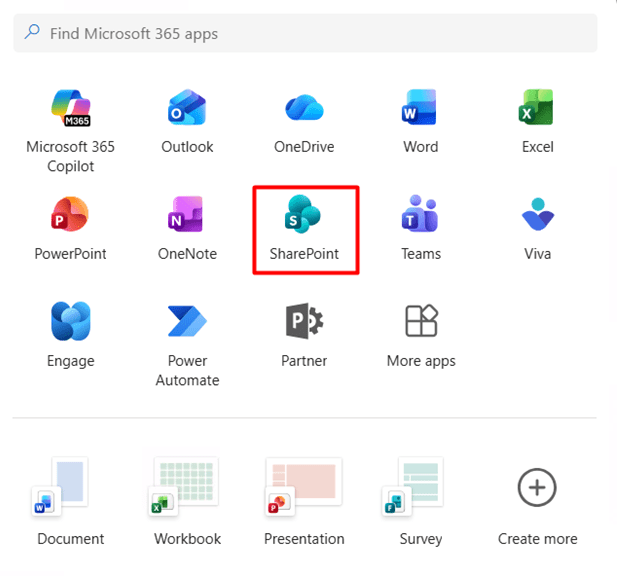
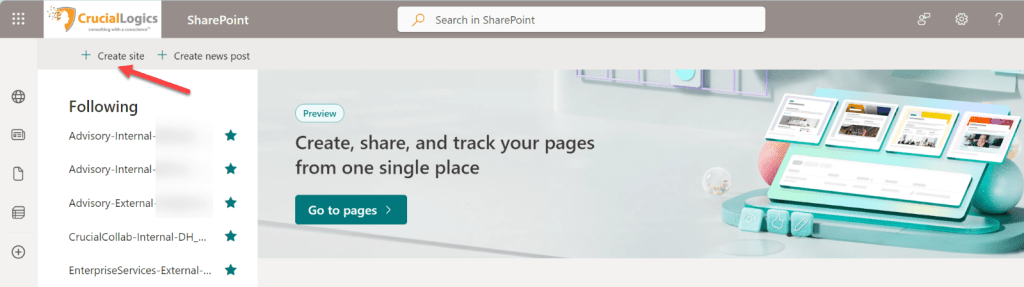
b) Click Create site, located next to the plus sign.
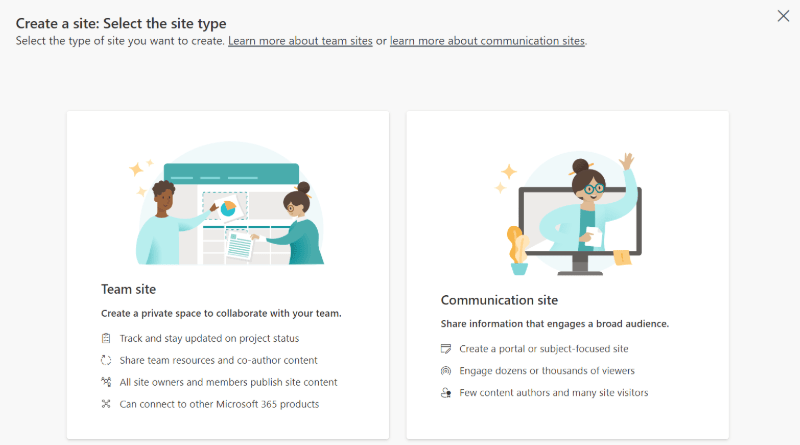
c) Select a communication site.
d) Select a template from Microsoft or from your organization.
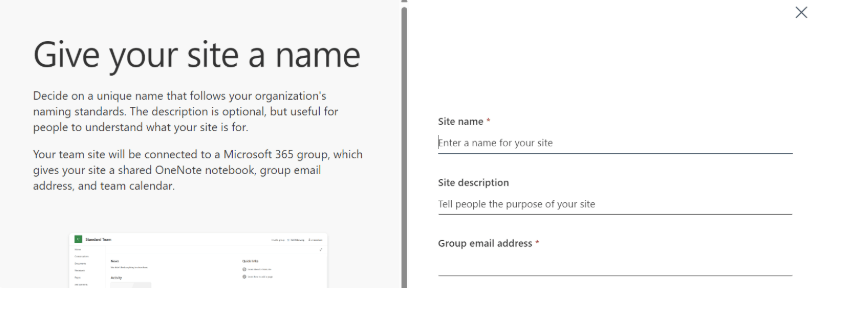
e) Customize your site with a name, description, and a custom site address.
f) Click Finish to view your new SharePoint site.
Step 3: Customize your SharePoint intranet
The next step in customizing your SharePoint intranet is to determine which content types should appear on the home page. Once identified, those content types should be mapped to the appropriate SharePoint web parts.
In most cases, the most used web parts in a SharePoint intranet include:
- News web part
- Events web part
- Hero and quick links
- Weather web part
- World clock
- Maps
- Deadline
- Call to action
- Image gallery stream web part
Even for users who are not deeply technical in SharePoint, the News web part is a natural fit for the hero section. Paired with this, the company calendar is often used to surface vacation schedules and company-wide events, highlighting key activities based on cadence.
While these features make SharePoint easy to customize, some functionality remains difficult to achieve without additional configuration. Modern SharePoint intranets often serve as an entry point to most organizational apps. A common requirement is allowing employees to create personal links to their frequently used applications. In many environments, this requires advanced customization and changes to permissions and privileges.
Security and Compliance in Your SharePoint Intranet
A SharePoint intranet supports a highly decentralized model for communication and collaboration. Its design enables teams to manage localized communication and collaboration sites, giving departments the freedom to configure their spaces to best suit their needs.
This model works well for department-based organizations that manage content in silos, but it introduces challenges when content needs to be published centrally for company-wide announcements. The most common issue is the absence of governance controls required to manage a centralized channel effectively.
As SharePoint sprawl grows, the risk of inconsistency increases. Much of this sprawl happens quietly in the background and becomes more pronounced when intranets rely on distributed repositories to surface company-wide information.
Compared to other Microsoft 365 workloads, intranets often concentrate several risk factors in one place: a broad audience, high levels of trust, reduced scrutiny over time, and gradual permission drift.
A secure intranet does not mean locking down every page, introducing complex permission models or requiring constant IT involvement. A secure intranet is predictable, controlled and easy to govern.
Below, we outline the fundamental security and compliance requirements for protecting business data and maintaining a consistent look and feel across the intranet.
Use role-based access, not individual permissions
Group-based access is a best practice for collaboration sites, but it often does not translate well to organization-wide intranets. Intranets scale horizontally, while individual permissions tend to remain static and difficult to manage over time.
A more effective approach is to map access to business roles rather than individual users. Access should align with broad employee groups, department-level audiences such as HR, finance, marketing or leadership, while individual users are designated as content owners rather than editors. At the same time, site ownership should be limited to a small and accountable group.
Each role should then be mapped to Microsoft 365 groups or Entra ID security groups to ensure consistent, manageable access.
Disable external sharing by default
Intranets are not collaboration platforms. The risk of external sharing goes beyond data loss. It can result in company announcements, product updates or proprietary information reaching the wrong audience.
Over time, intranets naturally accumulate sensitive content. External sharing that appears harmless at the outset can become a serious risk months later.
A secure intranet should assume:
- Internal only visibility
- No anonymous links
- No guest access
If information needs to be shared externally, it should be published on dedicated collaboration sites, not on the intranet.
Enforce least privilege access
Sites and site pages should follow the principle of least privilege. In many intranets, access issues begin with assigning too many site owners to prepare for access emergencies that may never occur. To speed up publishing, edit access is often granted too broadly, with page-level permissions used as shortcuts.
Best practice is to separate content creation from publishing, keep edit access tightly controlled and avoid page-level permissions unless absolutely necessary. The more exceptions you introduce, the harder it becomes to determine who can view or modify content.
- Related resource – Achieving Zero Trust with Microsoft Technologies
Monitor oversharing and anonymous access
Oversharing is often treated as a compliance issue rather than an operational one. In practice, it is rarely intentional. It occurs as permissions change without review, site owners move roles or content is copied from less secure locations.
A secure intranet assumes that permission drift will happen and plans for it. Practical controls include regular reviews of sharing links, visibility into externally shared files and pages and clearly defined ownership so issues are addressed rather than overlooked.
Crucial Features for a Security-Aware Intranet
The features discussed earlier are often treated purely as customization elements for navigation and user experience. When used intentionally, they can also help reduce exposure. These features can also be configured to surface content only to relevant departments, limit the attack surface of internal communications and avoid duplicating sites just to control access.
The less irrelevant content users are exposed to, the fewer opportunities exist for accidental disclosure or misuse.
Managed navigation and global menus
While adding navigation links to internal SOPs may be intended to make work easier for product teams, poorly governed menus can surface links to restricted sites, sensitive pages or legacy content that should not be visible to other departments.
Best practice is to centralize navigation management, limit who can modify global menus and ensure navigation aligns with permission boundaries. When users cannot easily navigate to content they do not need, the risk of accidental exposure drops significantly. At the same time, the balance must ensure users can still find the links they need when they need them.
Unified templates and controlled layouts
Templates do more than improve visual consistency. They standardize where content lives, reduce the risk of sensitive information appearing in the wrong context and intentionally limit creative freedom in ways that strengthen data security.
Controlled layouts further reduce risk by preventing users from embedding unsafe elements or external content without oversight.
Search that respects permissions
Search functionality often exposes underlying governance and security gaps. It is usually where users first notice a problem. Content appears in results they did not expect, snippets reveal more than intended and outdated or restructured pages resurface.
Optimizing search is often a reverse-engineered process that involves testing visibility using non-privileged accounts. When unexpected results appear, they should be treated as governance issues, not user issues.
In many cases, search results highlight something broken beneath the surface rather than an error on the user’s side.
Content Governance Features for a Secure SharePoint Intranet
Content governance is a continuous control system that protects trust in intranet content. It also serves as a mechanism to reduce long-term security debt.
Many organizations struggle across all areas of content governance, including classification, approvals, retention and enforcement. Slow update cadences often worsen the issue. Over time, content becomes outdated or risky, and audits frequently uncover intranet pages that should have been archived or removed.
A set of proven best practices includes:
- Sensitivity labels to distinguish internal only and restricted content, apply protection without changing site structure and reduce reliance on user judgement.
- Versioning, approval flows and page publishing controls to limit who can bypass approval workflows and enforce review before publishing or republishing content.
- Retention policies to automatically review or remove stale content, align intranet pages with compliance requirements and reduce long-term exposure without manual cleanup.
Conclusion
Intranets are not inherently secure simply because they are internal. Secure intranets are designed with features that integrate security, structure, and content controls, allowing them to evolve in parallel.
Creating and maintaining security in a SharePoint intranet is rarely straightforward. Organizations often face challenges such as gaps in user training, limited time and resources to keep up with new features and their impact, and scalability constraints as the intranet grows.
Our Microsoft experts aren’t just consultants; we’re your partners in transformation. From planning and assessing organizational use cases to shaping a broader digital strategy, we guide you every step of the way.
If you’re ready to secure your SharePoint intranet or design one from the ground up, complete the short form below or explore our SharePoint consulting services.